![White Teledentix Logo.png]](https://help.teledentix.com/hs-fs/hubfs/White%20Teledentix%20Logo.png?height=40&name=White%20Teledentix%20Logo.png)
How to Create a New Email Template
To begin building your library of reusable messages, follow these steps:
1. Navigate to a Patient Chart: Open the specific patient record you wish to work from.
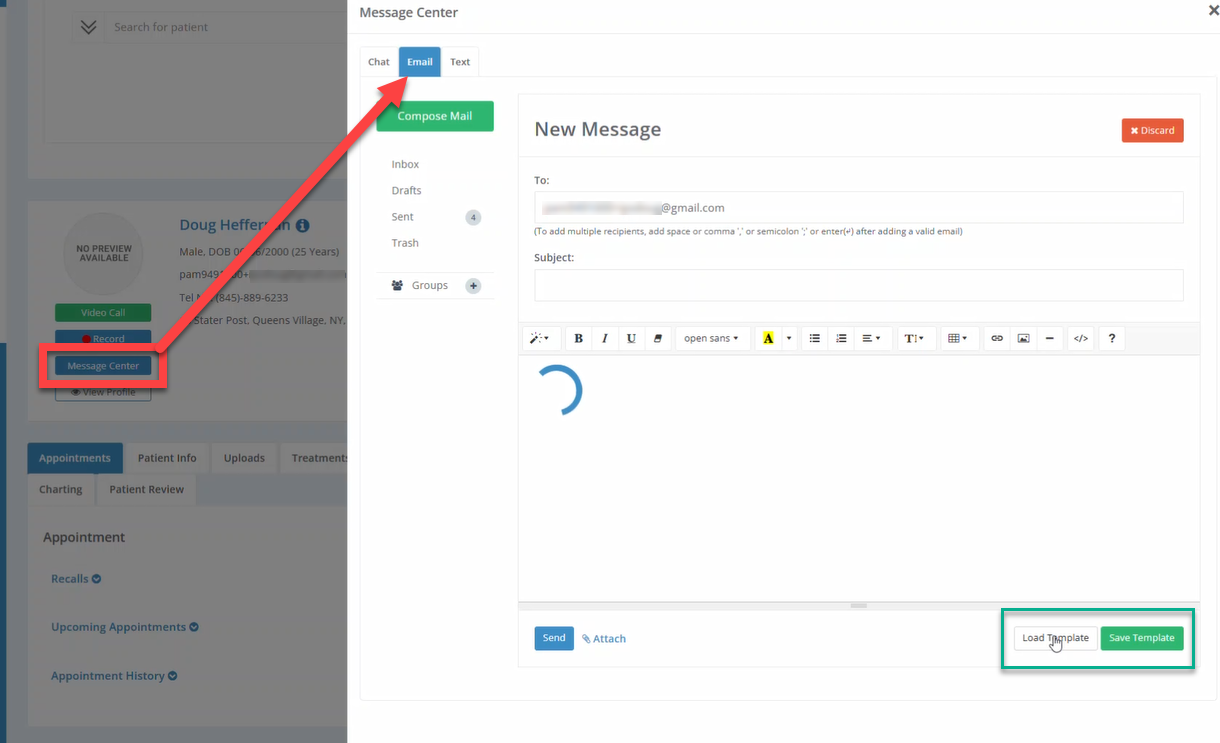
2. Access the Message Center: Once inside the chart, head over to the Message Center and select the Email tab.
3. Compose Your Message: Type out the Subject and the Body of the email you wish to turn into a template.
4. Save the Template:
◦ Click the green "Save Template" button located on the lower right-hand side of the screen.
◦ Enter a Title for your template so it is easily identifiable for future use.
◦ Click the blue "Save Template" button to finalize.
5. Confirmation: You will receive a notification once the template has been saved successfully.
How to Use a Saved Template
Once a template is saved, you can apply it to any patient chart to ensure consistent and rapid communication:
1. Reload or Load Template: On the lower right-hand side of the Email tab, click the "Load Template" button.
2. Select Your Template: Click on the Title of the template you previously created and click OK to load the content into the message fields.
3. Send the Email: After the template has populated the subject and body, click the "Send" button on the lower left-hand side.
4. Repeat for Other Patients: You can now navigate to any other patient’s chart, access the message center, and click "Load Template" to reuse the same message over and over again without retyping it.
Best Practices for Efficiency
• Standardize Outreach: As noted in our previous discussions, templates are an excellent way to manage returning patients. You can create a specific template for families seen in the past, instructing them on how to update their yearly consent forms or register for the new year.
• Unique Form Instructions: If you are using specific forms for the new year (e.g., a "2026 Consent Form"), your template can include direct instructions for the parent on what to expect when they receive a form assignment or a "Send Reminder" notification.