![White Teledentix Logo.png]](https://help.teledentix.com/hs-fs/hubfs/White%20Teledentix%20Logo.png?height=40&name=White%20Teledentix%20Logo.png)
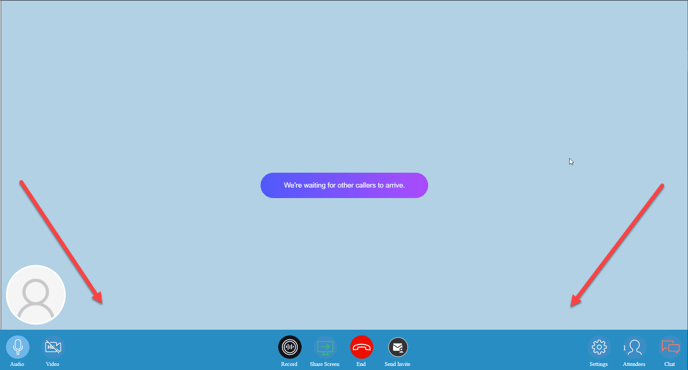
In the Teledentix video conference window, there is a toolbar on the bottom of the screen. From left to right, the buttons shown are Audio, Video, Record, Share Screen, End, Send Invite, Settings, Attendees, and Chat.
- Audio: Clicking the audio button will toggle your selected microphone on and off.
- Video: Clicking the video button will toggle your selected camera on and off.
- Record: Clicking record will begin recording the video call. Clicking record again will stop the recording and save the video call to Video Call Recordings under Reports.
- Share Screen: Clicking share screen will allow the provider or patient to share their device screen, share a file in the conference, or share a video URL.
- End: Clicking the end button will end the call for the user.
- Send Invite: Clicking send invite will prompt the provider to invite a third party either by SMS or email.
- Settings: Clicking settings opens up the settings menu, where you can adjust different camera/microphone devices.
- Attendees: Clicking attendees will show a list of all attendees currently in the video conference.
- Chat: Clicking chat will open the chat window and allow you to send text chat messages within the video conference.