![White Teledentix Logo.png]](https://help.teledentix.com/hs-fs/hubfs/White%20Teledentix%20Logo.png?height=40&name=White%20Teledentix%20Logo.png)
Step 1: Accessing Management Settings
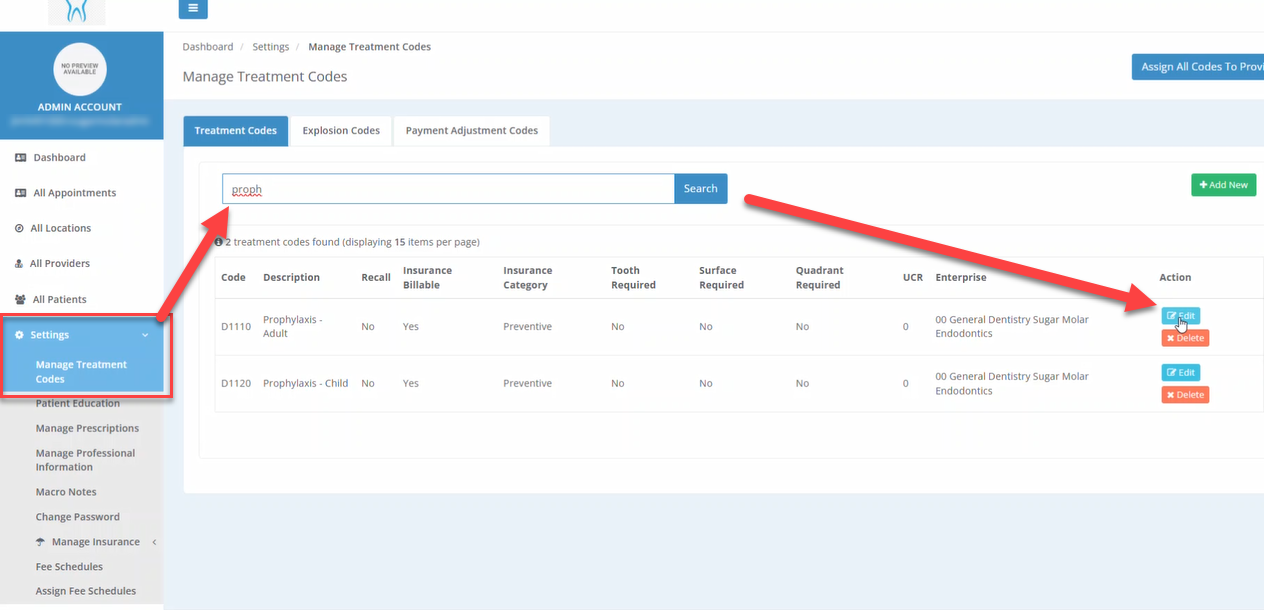
To begin, log into your admin account. From there, navigate to the Settings menu and select Manage Treatment Codes. This section contains all the fees associated with your various procedure codes.
Step 2: Locating Specific Procedure Codes
Once you are in the treatment codes section, you can find the specific codes you wish to update using two methods:
• Search Bar: Use the search bar at the very top to find codes by their description (for example, searching "prophy" will display all associated prophylaxis codes).
• Pagination: You can also manually scroll through the list using the page numbers located on the lower right-hand side.
Step 3: Updating the Fee (UCR)
After locating the desired code, follow these steps to change the price:
1. Click the Edit button on the right-hand side of the code.
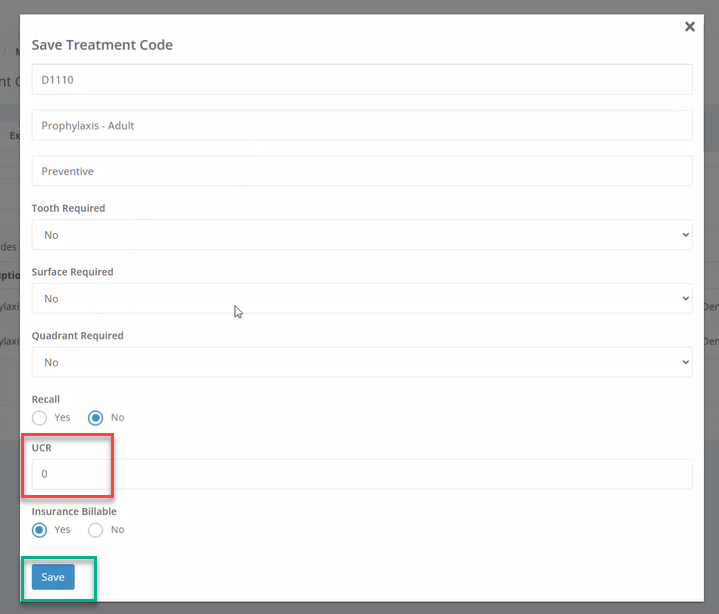
2. A popup will appear. Locate the field labeled UCR—this is where your fees are stored.
3. Enter the new fee amount.
◦ Note: You do not need to add a decimal if you are entering a whole number. Only include a decimal if there are specific cents involved (e.g., enter "150" for $150.00, but "150.75" for $150.75).
4. Click Save.
5. Repeat this process for any other codes that require updates.
Step 4: Assigning Updated Fees to Providers
Updating the fee in the admin settings is the first step; you must then assign these updates so they appear in your provider account.
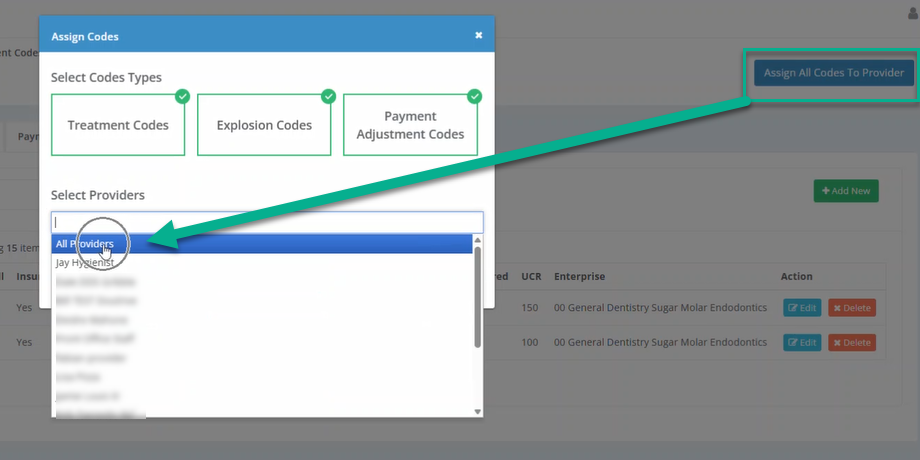
1. Once all codes are updated, select the option to "Assign all codes to provider".
2. Ensure the necessary checkboxes remain selected and then choose "Select All Providers".
3. Click Assign Codes to finalize the process.
Step 5: Verification
To ensure the changes have been applied correctly, log into your provider account. You should now see the updated procedure code fees reflected in your system.